Tool Options
Management Tools
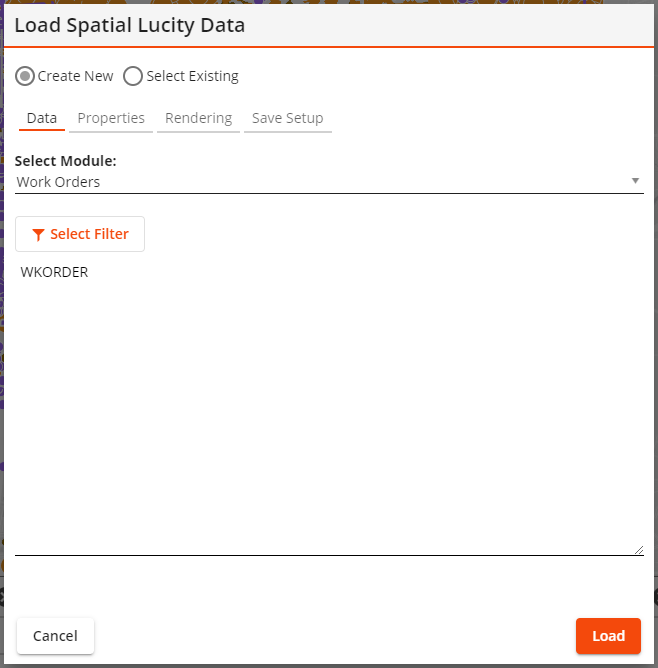
These options control how the tool is going to operate.
|
Create New Select Existing |
Indicates that the tool is creating a new layer or is using an existing layer. |
|
Existing Setup* |
Enables the user to select a saved layer. |
|
Show Only Assigned * |
Causes the Existing Setup list to only show layer setups that are currently set to always show up in the current GIS view. |
|
My Setups Only* |
Causes the Existing Setup list to only show layer setups that were created by the currently logged in user. |
*Only appears if the Select Existing option is selected.
Filter
The first section of the tool is used to select the data that will be displayed in the map.
|
Select Module |
Identifies the EAM module that contains the information the user wishes to display in the map. |
|
Filter |
Enables the user to specify the set of records that the tool will display in the map. |
|
|
Enables the user to edit the Filter that the tool will use. |
|
Limit results to current map extent |
Causes the tool to only display results that would show up in the current bounds displayed in the map. |
Fields
The second section of the tool is used to select which Lucity fields to include in the map layer.
|
Select Module |
Lists the tables that are part of the Selected Module. Click on a table to see its fields. |
|
Select Field |
Lists all fields that are part of the selected table. Click a field and then click the button add it to the selected fields box (far right of pop-up). |
|
Selected Fields |
Indicates which fields have been selected for inclusion in the map layer. Click a field and then click to exclude it from the map layer. |
Rendering: Layer Properties
The last section of the tool lets the user control map symbols.
|
Layer Title |
Indicates the name of the map layer that this tool will create. Users may edit the name generated by the system. |
|
Symbol Color |
Identifies the color in which the map layer's symbols will appear when using simple symbology. |
|
Color code based on field Field Color Palette
|
Enable the user to use complicated symbology which color-codes the location points in the map based on a designated Field.
|
|
Symbol Size |
Controls the size of the symbols that will appear in the map. |
|
Auto Refresh Interval |
Tells the system to automatically refresh the data in the layer based on the number of entered minutes. |
Save Setup Properties
Lucity Module Spatial Layers can be saved and loaded into the map later.
|
Setup Name |
Provides an ID for the configured layer so that it can be saved in the system and found later. |
|
Setup Description |
Provides an optional description of the purpose of the layer. |
Buttons
These buttons control what is done with the configured module spatial layer setup.
|
|
Closes the tool without doing anything further. |
|
|
Removes the setup from the current GIS View. Only available if the setup in the Existing Setup is currently assigned to the current GIS View. |
|
|
Deletes the setup record and closes the tool. |
|
|
Saves the setup. The Setup Name field must be populated. |
|
|
Assigns the setup listed in the Existing Setup field to the current GIS View. The layer will be loaded every time the view is opened. |
|
|
Loads the Setup into the webmap. |